

With our mobile app installed, you'll be able to receive PUSH notifications when someone reaches out to you with a message. They work on modern Android and iOS 16.4+ devices.
Step 1. Install prohood.org as a mobile app
On Android devices
Visit prohood.org, tap on the three-dots menu icon (or hamburger) to access available options and look for "Install app" or "Add to Home screen":
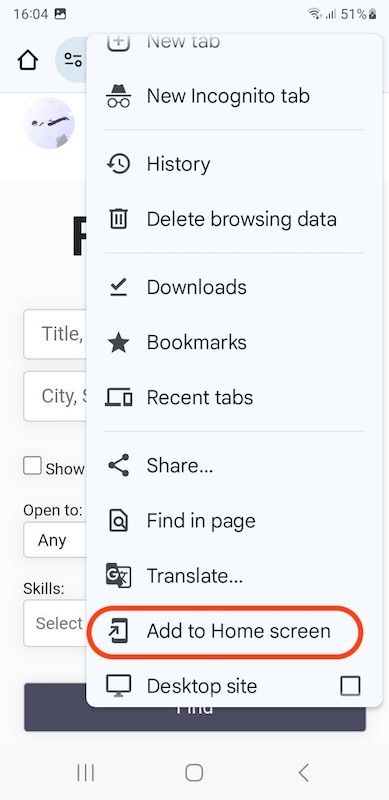
You're done when the website icon appears on the home screen and the app opens without browser interface.
Sometimes a browser can even show you an icon in the address bar (Samsung Internet, for example) or a modal window asking about installing the website as an app. If this is the case, proceed.
On iOS devices
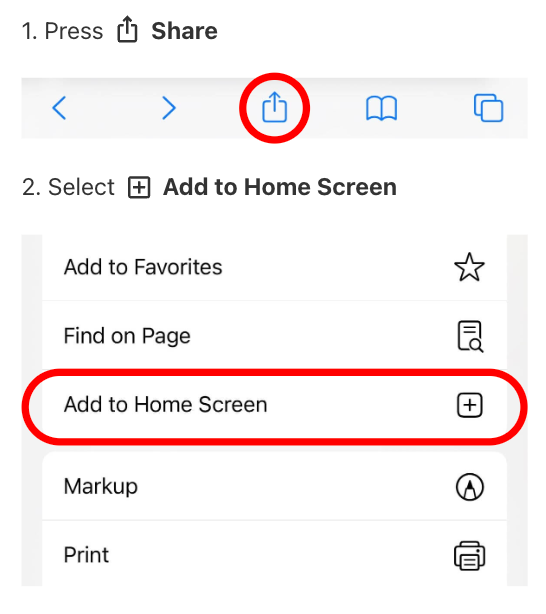
Visit prohood.org from Safari, tap on the "out of box arrow icon" and then "Add to Home Screen":
Step 2. Log in to your account, navigate to the account settings and enable PUSH notifications
If you're on the account settings page—Notifications tab for the 1st time, you'll see a window asking you about enabling PUSH notifications. Proceed and enable them.
If you denied the permission on the first ask, you must go back to system Notification settings (of your device) and allow the permission. Also, you must give the permission on each device separately.
To disable PUSH notifications
Log in to your account and navigate to the account settings—Notifications tab. Uncheck the checkbox for sending push notifications.